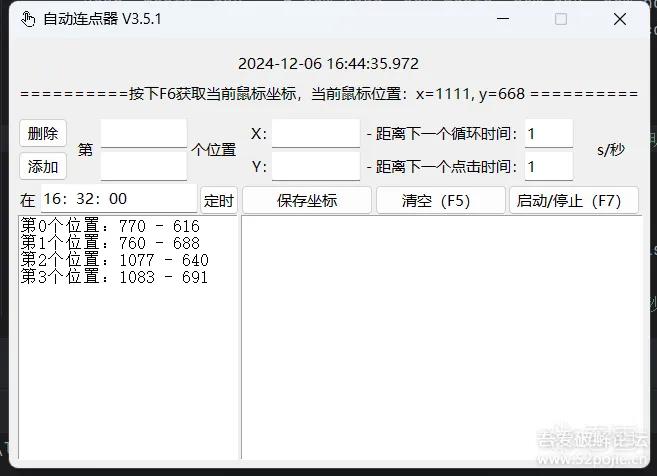
最近玩雷霆战机,但是金币又很少,百度搜了看可以用自动连点器刷无尽,但是我手机不可能24小时挂着,模拟器又需要把微信退出去,就找pc版的连点器吧,找了好几个都要RMB,GitHub上也少,就自己用py写一个吧,简简单单,可以定时,多点位就能满足,下面贴上代码和运行效果:
更新
1、更新了2.0版本,修改ui界面附上地址:
https://wwxv.lanzoul.com/b0foy0e9c
密码:2f5o
2、更新3.0版本,新增可删除指定位置,可增加指定位置到哪,如果指定位置已存在则替换当前指定位置,新增实时显示鼠标坐标
附上GitHub地址:https://github.com/StephenYXC/AutoClick,鼠标坐标实时位置暂时不能打包后实现,有懂的可以提示下,pynput的库
3、更新3.2版本,可保存坐标点、循环和点击时间
4、更新3.5.1,可设定时间执行点击操作,实时显示当前日期时间
1 2 3 4 5 6 7 8 9 10 11 12 13 14 15 16 17 18 19 20 21 22 23 24 25 26 27 28 29 30 31 32 33 34 35 36 37 38 39 40 41 42 43 44 45 46 47 48 49 50 51 52 53 54 55 56 57 58 59 60 61 62 63 64 65 66 67 68 69 70 71 72 73 74 75 76 77 78 79 80 81 82 83 84 85 86 87 88 89 90 91 92 93 94 95 96 97 98 99 100 101 102 103 104 105 106 107 108 109 110 111 112 113 114 115 116 117 118 119 120 121 122 123 124 125 126 127 128 129 130 131 132 133 134 135 136 137 138 139 140 141 142 143 144 145 146 147 148 149 150 151 152 153 154 155 156 157 158 159 160 161 162 163 164 165 166 167 168 | # -*- coding: utf8 -*-import time,re,os,pickleimport tkinter as tkfrom tkinter import messagebox,ttkimport pyautoguiimport keyboardimport loggingimport threading # 初始化一个空列表来保存坐标点coordinates = []# 声明一个全局变量,用于控制循环的启动和停止is_running = Falseclick_count = 0 # 循环计数器clickNum = 0 # 标记 # 设置日志记录logging.basicConfig(level=logging.INFO, format='%(asctime)s - %(levelname)s - %(message)s') def get_mouse_position(): global clickNum x, y = pyautogui.position() coordinates.append((x, y)) update_message(f"{x}, {y}\n") # 清空信息def clear(): global click_count #清空已获取的坐标点 entry1.delete(0, tk.END) entry2.delete(0, tk.END) coordinates.clear() is_running = False click_count = 0 # 循环计数器 message.config(state='normal') # 确保Text组件是可编辑的 message.delete('1.0', tk.END) # 删除从第一行第一个字符到最后一个字符的所有内容 message.config(state='disabled') # 清空后再次设置为禁止输入状态 # 清空并删除已保存到文件里的数据 messagebox.showinfo("信息","所有数据已清空") # 启动连点def startClickThread(): global is_running,click_count seconds1 = float(entry1.get()) seconds2 = float(entry2.get()) while is_running: try: # 遍历coordinates列表中的每个坐标点 for x, y in coordinates: # 移动鼠标到坐标点(x, y) pyautogui.moveTo(x, y) # 模拟鼠标点击 pyautogui.click() time.sleep(seconds2) # 一轮循环完成,增加计数器 click_count += 1 current_time = time.strftime("%Y-%m-%d %H:%M:%S", time.localtime()) update_message(f"{current_time} 第 {click_count} 次循环结束\n") # 等待-秒 time.sleep(seconds1) except pyautogui.FailSafeException: update_message("操作取消,因为鼠标移动到了屏幕角落。\n") is_running = False except Exception as e: logging.error(f"发生错误:{e}") is_running = False # 启动或停止def startOrStop(): global is_running if check_empty(): # 如果两者都为空,则不执行任何操作 messagebox.showwarning("警告", "时间和坐标列表都不能为空!\n") return if not is_running: is_running = True update_message("-----启动连点,当前每 {} 秒点击一次-----\n".format(entry2.get())) threading.Thread(target=startClickThread).start() # 使用线程启动连点操作 else: is_running = False update_message("-----停止连点-----\n") def check_empty(): # 检查entry1,entry2是否为空 if entry1.get().strip() == "" or entry2.get().strip() == "": return True if len(coordinates) == 0: return True return False def update_message(message_text): def safe_update(): message.config(state='normal') message.insert(tk.END, message_text) message.config(state='disabled') # 滚动到最底部 message.yview(tk.END) root.after(0, safe_update) # 监听F6键keyboard.add_hotkey('f6', get_mouse_position)# 监听F7键keyboard.add_hotkey('f7', startOrStop) # 创建主窗口root = tk.Tk() # 获取屏幕宽度和高度screen_width = root.winfo_screenwidth()screen_height = root.winfo_screenheight()# 获取窗口的宽度和高度win_width = 650 # 假设窗口宽度为650像素win_height = 400 # 假设窗口高度为400像素# 计算窗口在屏幕上的位置x = (screen_width / 2) - (win_width / 2)y = (screen_height / 2) - (win_height / 2)# 设置窗口的位置root.geometry(f'{win_width}x{win_height}+{int(x)}+{int(y)}') # 获取当前脚本的绝对路径script_dir = os.path.dirname(os.path.abspath(__file__)) # 构建图标文件的绝对路径icon_path = os.path.join(script_dir, 'config', 'click.png')win_image = tk.PhotoImage(file='.\\config\\click.png')root.iconphoto(False, win_image)root.title("自动连点器")root.geometry("650x400")# 创建标签label = tk.Label(root, text="按下F6获取当前鼠标坐标")label.pack(pady=10) # 下一个大循环frame1 = tk.Frame(root)frame1.pack(fill=tk.X, expand=True)label1 = tk.Label(frame1, text="距离下一个循环点击时间:")label1.pack(side=tk.LEFT, fill=tk.X, padx=(20, 10))entry1 = tk.Entry(frame1, width=10)entry1.pack(side=tk.LEFT, fill=tk.X, expand=True)label2 = tk.Label(frame1, text="s/秒")label2.pack(side=tk.LEFT, fill=tk.X, padx=(20, 10)) # 下一次点击frame2 = tk.Frame(root)frame2.pack(fill=tk.X, expand=True)label3 = tk.Label(frame2, text="距离下一个点击时间:")label3.pack(side=tk.LEFT, fill=tk.X, padx=(20, 10))entry2 = tk.Entry(frame2, width=10)entry2.pack(side=tk.LEFT, fill=tk.X, expand=True)label4 = tk.Label(frame2, text="s/秒")label4.pack(side=tk.LEFT, fill=tk.X, padx=(20, 10)) # 创建按钮frame5 = tk.Frame(root)frame5.pack(fill=tk.X, expand=True)button1 = tk.Button(frame5, text="清空", command=clear)button1.pack(side=tk.LEFT, fill=tk.X, expand=True)button2 = tk.Button(frame5, text="启动/停止(F7)", command=startOrStop)button2.pack(side=tk.LEFT, fill=tk.X, expand=True) # 创建一个Label用于显示信息message = tk.Text(root, state='disabled')message.pack(fill=tk.BOTH, expand=True,padx=5, pady=5) # 运行主循环root.mainloop()keyboard.wait() |
 轻装前行
轻装前行